
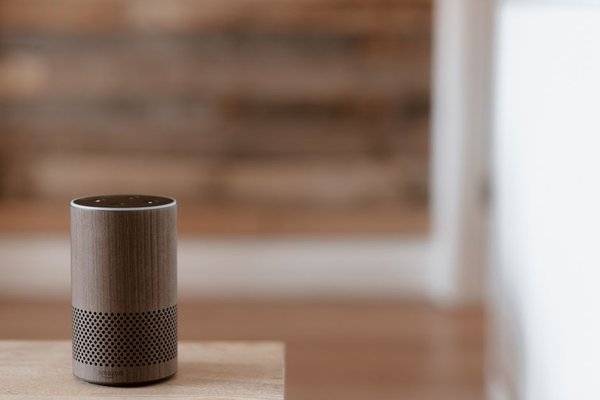
A smart speaker can set a timer while you cook, read the weather before work, and turn off the lights at bedtime. The convenience is clear. Less obvious is what happens to your voice request afterward, who can hear a personalized answer, and which connected services can act on spoken commands. Reviewing smart speaker privacy settings helps you keep the useful features while choosing sensible boundaries.
Begin with the device in your busiest room. A kitchen speaker used by family and guests needs different safeguards from one in a private bedroom. Here are the controls worth checking.
Look at your recent voice history
Review what the assistant actually heard before changing its settings. Smart speakers can activate accidentally when television dialogue or ordinary speech resembles a wake phrase. History may reveal unexpected requests as well as the commands you intended.
For Amazon Echo, open the Alexa app, select More, then Alexa Privacy and Review Alexa History. You can examine entries and delete selected interactions or larger date ranges. Google Assistant users can inspect activity through their Google Account’s My Activity area. On HomePod, Siri History is available in the Home app under the HomePod’s settings.
Deleting voice history is not a universal erase button: orders, reminders, or information retained by third-party services may still exist.
Choose recording and transcript retention carefully
One of the most useful Alexa privacy settings is how long interaction data remains available. Amazon offers automatic deletion options and a choice not to save voice recordings. However, transcripts and typed requests can be retained temporarily even with recording storage disabled. Certain choices also remove voice IDs or limit personalization, so read the description before confirming.
Google distinguishes activity history from saved audio. In your Google Account, go to Data & privacy, then Web & App Activity, and check Include voice and audio activity. Google says audio saving is off unless you opt in. Switching it off does not remove audio saved earlier; delete old items separately through Manage activity.
For HomePod, you can use Delete Siri History in the Home app. Whatever the brand, review both future retention and existing history.
Limit personal results in shared spaces
Calendar entries, reminders, messages, and contact information can be useful through voice control. They can also be embarrassing or sensitive when announced to everyone nearby.
Google Home provides Personal results controls for supported speakers and displays. You can decide which devices can provide information linked to your account. Voice Match helps tailor responses, but voice recognition is not a foolproof security boundary.
On HomePod, inspect Recognize My Voice and Personal Requests for household members. Personal Requests can use information from supported apps on a linked iPhone or iPad, and some actions may require authentication. Alexa users should examine voice profiles and personal-content features too.
Consider a speaker near the front door. It might be ideal for weather updates, but not for announcing an appointment or reading a private message. Disable personal results on that device while preserving them, if desired, in a more private room.
Prevent accidental voice purchases
Homes with children or frequent visitors should review purchasing permissions. In the Alexa app, look under Settings, Account Settings, and Voice Purchasing. Depending on your account, you can disable voice ordering or require a spoken confirmation code.
A code said aloud may be overheard. If you rarely order by voice, switching the feature off is simpler. Also inspect purchases allowed through third-party skills: they may use separate arrangements. Check linked payment methods and order notifications instead of relying solely on voice recognition.
Use the physical microphone control
For confidential conversations, press the microphone-off button on the speaker. Most models show a visible indication when muted. Check that the indicator changes and the device no longer responds to its wake phrase.
Muting does not delete saved recordings or revoke an app’s existing access to information. Nor does it turn off microphones on nearby phones, laptops, or smart displays. Think of the mute switch as one useful barrier, not a complete privacy reset.
Review household members and connected services
Smart speaker privacy also depends on who can operate your wider smart home. Review invited household members and remove access for former roommates or anyone who no longer needs it. Connected locks, cameras, garage doors, and routines deserve particular attention.
Inspect Alexa skills, Google Home integrations, Siri-connected apps, and linked services. Disconnect unfamiliar or unused ones, and review permissions before enabling new features. A music integration generally has a different risk profile from a service that can control entry to your home.
For a fuller audit, follow a smart home security checklist. Understanding how voice assistants work also makes it easier to distinguish wake-word detection, cloud processing, activity history, and third-party access.
Check location and screen notifications
A speaker may need your general location for local weather, but not every integration requires precise details. Examine location permissions and personalization options separately. On smart displays, check whether calendar items, photos, or notifications appear where visitors can see them.
Revisit these settings when moving a device from a private room into a communal space, adding another person to your household, or enabling a new service.
Try a ten-minute privacy check
First, inspect recent activity and clear history you do not want retained. Next, choose a recording policy, test the microphone mute button, and turn off unnecessary personal results on shared devices. Review purchasing restrictions, household membership, and unused integrations.
Finally, test your choices. Ask the speaker for the weather, then try a personal-information request in a shared room. If it reveals more than expected, change the relevant access setting. Repeat this check after major updates or when following a smart speaker setup guide for a new device.
Frequently asked questions
Are smart speakers recording everything I say?
Most listen for a wake phrase, but this does not mean every surrounding conversation is continuously saved to your account. Accidental activation can happen, and processing differs by device. Review your actual history and microphone controls.
Does deleting voice history make a smart speaker completely private?
No. It reduces retained interaction data, but reminders, purchase records, connected services, and third-party data may remain. Check account access and integrations alongside recording history.
Can guests hear my calendar information?
Possibly, when personal results are enabled and a device permits the response. Voice matching can make mistakes. Restrict personal information on devices used by visitors.
Will stricter privacy settings stop voice control working?
Basic functions such as timers, weather, and music often remain available. Some personalized features, including voice profiles, may be affected. Test the functions you use after each change.
Keep convenience on your terms
The right smart speaker privacy settings depend on who shares your home and what information you want your assistant to handle. Start with history, retention, personal results, purchases, and household access. Then revisit your choices as your devices and daily routines change.