
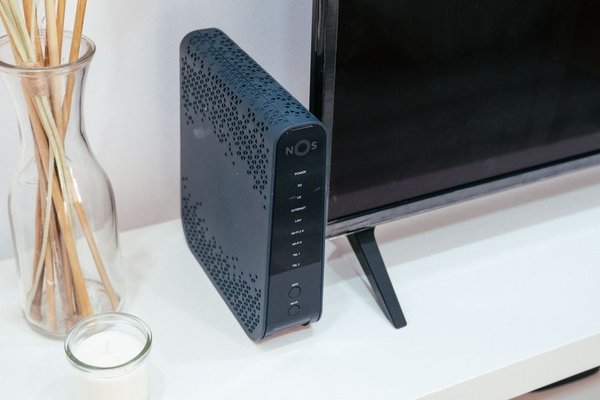
A smart bulb that ignores commands, a camera that drops offline, and a speaker that pauses mid-song may share one cause: an unreliable network. A thoughtful smart home network setup gives each device a stable connection, keeps traffic manageable, and makes problems easier to diagnose. The goal is not the fastest advertised router. It is consistent coverage, sensible placement, and settings that suit your equipment.
Start With a Device and Coverage Map
Before changing settings, list devices in each room and how they connect. Note which use Wi-Fi, which depend on a Zigbee hub, and which use Thread. Record locations such as a front-door camera, garage sensor, or upstairs thermostat. This inventory stops you from treating every disconnection as a Wi-Fi problem.
Walk through the home with a phone connected to Wi-Fi and check signal quality where devices actually operate. Test behind the television, beside external walls, and near the front door rather than just the middle of each room. A strong signal at your desk says little about an outdoor camera. Improving Wi-Fi coverage at home starts with these overlooked corners.
Build Coverage Around Real Device Locations
Position the router in an open, reasonably central area, raised off the floor and away from metal cabinets and bulky electronics. Walls, masonry, appliances, and distance weaken signals. If internet enters at one edge of the house, an additional access point may help more than an expensive router in the same poor location.
For larger homes, consider mesh Wi-Fi or wired access points. Where feasible, Ethernet between access points avoids a weak wireless backhaul. Connect stationary hubs, streaming boxes, and video recorders by Ethernet when supported, leaving wireless capacity for other devices. Avoid adding extenders blindly; first identify where coverage breaks down.
Choose Wi-Fi Bands and Router Settings Carefully
Match the Band to the Device
Many smart plugs, bulbs, and budget cameras work only on 2.4 GHz Wi-Fi. This band generally reaches farther through a home than higher-frequency bands, although neighboring networks and other equipment can cause interference. The 5 GHz band suits nearby phones, laptops, and video devices needing greater throughput. Where available, 6 GHz adds capacity for compatible devices but typically requires denser coverage.
If a device refuses to pair, check its supported band and manufacturer’s instructions. Some onboarding apps need the phone and device on the same local network, while older devices can struggle with band steering or WPA3-only settings. A separate 2.4 GHz network name may simplify pairing but is not always necessary afterward.
Avoid Unnecessary Tweaks
Keep router firmware current and start with automatic channel selection unless you find persistent interference. Use compatible security rather than weakening protection for the whole household. In a crowded apartment, inspect channel information and change one setting at a time. That reveals which adjustment actually improves smart home Wi-Fi.
Understand What Your Hubs and Sensors Need
Not every smart device joins your router directly. Zigbee products communicate through a compatible coordinator or hub. Thread devices form a low-power mesh and use a Thread border router to reach the wider IP network. Matter is an interoperability standard, not another wireless band; Matter devices can operate over supported networks including Wi-Fi, Ethernet, or Thread.
Give hubs reliable power and a stable connection, preferably wired when possible. Position radios away from major interference sources, following manufacturer guidance. A door sensor failing at the far end of a house may need better Zigbee or Thread mesh coverage, not another Wi-Fi access point. Understanding how smart home hubs work can prevent a costly, irrelevant upgrade.
Organize Devices Without Breaking Local Control
Give devices recognizable names in your router’s client list, such as Kitchen Plug or Driveway Camera. Reserve IP addresses for equipment needing predictable local addresses, including certain hubs or recorders, but most bulbs and plugs work with ordinary DHCP. Record each device’s model, app, and location for troubleshooting.
A separate guest or IoT home network can reduce exposure between less-trusted devices and personal computers. However, guest networks often prevent devices from seeing one another, disrupting local discovery, casting, or smart-home controls. Before isolating equipment, check whether its controller requires local communication and whether your router offers suitable access rules.
Secure the Network and Keep It Maintainable
Use a strong, unique Wi-Fi password and a different router administrator password. Prefer WPA3 Personal when supported, or WPA2 Personal with AES for compatible older devices. Avoid obsolete WEP security. Enable firmware updates, protect smart-home accounts with multifactor authentication, and remove unused devices from the connected device network.
Disable remote-management features you do not need. Avoid exposing cameras or hubs directly to the internet; use supported secure remote access instead. Check whether manufacturers still provide security updates, particularly for older cameras and locks. Securing smart home devices is a useful next step once connectivity is stable.
Test Reliability, Not Just Internet Speed
After setup, try a realistic routine: stream video from the furthest camera, play music on a speaker, and trigger a light in another room. Repeat during a busy household hour. Note delayed responses, buffering, and devices disappearing from apps. These symptoms reveal more than one speed-test result near the router.
Suppose a driveway camera disconnects every evening while indoor speakers stay online. Check signal strength at its mounting position, access-point load, and its power supply. Add or move an access point only after confirming weak coverage. If every device fails together, inspect the router, internet connection, or hub first. Change one variable, retest, and record the result.
Frequently Asked Questions
Do smart home devices need a separate Wi-Fi network?
No. Many homes work well with one secure network. Segmentation can improve isolation, but some devices require local discovery or access to a controller. Check compatibility before using a guest network.
Is 2.4 GHz or 5 GHz better for smart devices?
It depends on the device and location. Many low-bandwidth devices support only 2.4 GHz, while compatible cameras and speakers may benefit from 5 GHz where coverage is strong. Follow product specifications.
Does Matter remove the need for a hub?
Not necessarily. Matter over Thread needs a Thread border router, and your platform may require a compatible controller. Existing Zigbee devices generally still need an appropriate bridge or hub.
What should I check when multiple devices go offline?
Start with shared equipment: router power, access points, internet status, and any central hub. Check recent firmware or password changes before resetting individual devices, which may complicate recovery.
Make Reliability the Baseline
A dependable smart home begins with a network that matches the house and its technology. Map devices, improve weak coverage, choose suitable bands, secure access, and test everyday routines. With a steady foundation, adding another sensor or speaker becomes straightforward rather than another troubleshooting project.