
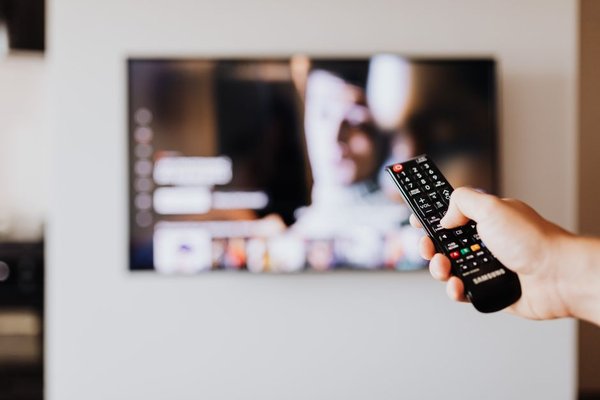
A football flies across the screen, but the players leave hazy trails. Then you switch on motion smoothing and suddenly your favourite film looks like a daytime television drama. Both problems can have different causes, so there is no single setting that fixes every moving picture.
Learning how to reduce TV motion blur starts with identifying what you actually see. A soft moving object, an uneven camera pan and an unnaturally fluid movie call for different adjustments. The aim is clearer motion without sacrificing the director’s intended look.
First, Tell Motion Blur Apart From Judder and Stutter
Motion blur appears as smearing or trailing around moving objects, especially during sport or fast action. Some blur is recorded by the camera itself; some comes from the display’s pixel response or the way your eyes track an image that stays visible between refreshes.
TV judder is different. It describes uneven movement when video frames are displayed at an irregular cadence, such as 24-frame-per-second film converted for certain 60Hz signals. Stutter is the distinctly stepped appearance of low-frame-rate motion, even when frames are evenly paced.
Before changing anything, replay a familiar scene. If the ball looks smeared, investigate blur. If a slow sideways camera pan seems to hop, investigate judder or stutter. If faces glide unnaturally, interpolation is probably too aggressive.
Start With a Natural Picture Mode
Choose Cinema, Movie or Filmmaker Mode as a starting point, if available. These modes often avoid the heavy processing found in Vivid or Dynamic presets. They do not guarantee perfect motion, but they make it easier to judge one change at a time.
Open the picture settings while your actual movie or sports source is playing. Many TVs store separate settings for streaming apps, HDMI inputs, HDR content and game mode. A change made on the home screen might not carry across to your console or streaming device.
Adjust Motion Smoothing Without Overdoing It
Find the Controls Behind the Marketing Names
Manufacturers use names such as Sony Motionflow, LG TruMotion and Samsung Picture Clarity Settings. Depending on the model, the menu might offer Smoothness, De-Judder, De-Blur or a simple Low, Medium and High control.
Motion interpolation calculates extra frames between real ones. A little can soften distracting stutter, but higher settings create the soap opera effect and may introduce halos, ripples or distorted objects during complex movement. It does not make slow-changing pixels respond faster.
Use the Lowest Effective Setting
For films, start with motion smoothing off. If panning shots feel uncomfortably choppy, try the lowest custom smoothing or de-judder setting and compare the same shot again. Stop as soon as the movement becomes comfortable. A modest adjustment often works better than the default automatic setting.
Consider Black Frame Insertion for Sharper Motion
Some TVs offer Black Frame Insertion or backlight strobing, sometimes called Clearness, LED Clear Motion or a similar name. Instead of inventing frames, the display briefly interrupts light output. This can reduce perceived persistence blur as your eyes follow fast-moving objects, without creating the same ultra-smooth film appearance.
There is a tradeoff: the screen can become darker, flicker may become noticeable and some combinations can produce double images. Try it on a bright sports broadcast, then switch it off if the dimming or flicker bothers you. It is not automatically the best TV motion blur fix.
Check Frame Rate and Source Quality
A 120Hz panel can display 24fps film frames evenly, repeating each frame five times, provided the signal and playback path support the correct cadence. That helps prevent conversion judder, but it cannot remove blur already captured by a camera or eliminate every instance of low-frame-rate stutter.
On a compatible streaming box or disc player, look for a match-frame-rate setting. It can help the television receive films at their native cadence instead of forcing everything into one output rate.
Check the quality of the original video too. Heavy compression, low frame rates and a poorly filmed live stream can make movement look messy. Changing a TV menu will not restore fine detail missing from the recording. For a broader setup check, see our guide to choosing the best TV picture settings.
Use Different Motion Profiles for Films, Sports and Games
Films usually benefit from restrained processing and accurate 24fps handling. Sports can tolerate slightly more smoothing if it helps you follow the ball, although fast passes may expose interpolation mistakes.
For gaming, enable Game Mode and check whether your console and TV support the same refresh rate. A genuine 120fps game on a compatible 120Hz display can look more fluid than a 60fps game, but not every game runs at 120fps. Variable Refresh Rate can help with tearing and uneven frame delivery; it does not directly erase pixel-response blur.
Conventional motion interpolation is often disabled in Game Mode because it can increase input delay. If gaming feels sluggish after a picture adjustment, prioritise responsiveness. Our guide to 60Hz versus 120Hz TVs can help explain what a higher refresh rate actually changes.
A Simple Five-Minute Motion Test
Find a film scene with a slow landscape pan and a sports clip with a fast-moving ball. First, play both with motion smoothing off. Next, enable the lowest interpolation setting and replay exactly the same moments. Watch the edges of buildings during the pan and the outline of the ball during the match.
If the landscape glides like video footage rather than film, reduce smoothing. If the ball becomes easier to track without strange outlines, keep that sports setting. Test any strobing control last, because a darker image can distract from whether motion actually improved. This comparison isolates the problem better than changing five controls simultaneously.
Frequently Asked Questions
Should I turn motion smoothing off completely?
For movies, off is a reliable starting point, especially if you dislike the soap opera effect. If low-frame-rate stutter is distracting, a very low setting may provide a better compromise. Personal preference and the TV model both matter.
Does a 120Hz TV eliminate motion blur?
No. A higher refresh rate can help present compatible high-frame-rate content and evenly repeat 24fps film frames, but camera blur, pixel response and persistence blur can still be visible.
Why does my OLED TV look choppy during films?
OLED’s fast pixel response can make the individual steps of 24fps motion more obvious, particularly during slow camera pans. Native-cadence playback and restrained interpolation may help, though neither changes how the film was shot.
Can sharpening fix blurry movement?
Usually not. A sharpness control mainly changes edge emphasis and may create halos. It cannot recover detail absent from the source or correct the display’s motion behaviour. Start with cadence and motion controls instead.
The Best Result Is Motion That Stops Drawing Attention
Reducing TV motion blur is about choosing the right compromise for what you watch. Begin with a natural picture mode, confirm the source frame rate, raise motion smoothing only when needed and experiment carefully with black frame insertion. You should notice clearer action, not the television working overtime to make everything look artificially smooth.